-2.png?width=100&height=75&name=Presh%20(LightBlue)-2.png)
Google Tag Manager should already be installed on your site before you follow these instructions.
If you don't have Google Tag Manager installed yet; first follow the instructions to Create a New Tag Manager Account and Container and instructions to Set Up and Install Google Tag Manager.
CREATE PAGE TRIGGER
- Sign in to Google Tag Manager.
- Navigate to Workspace > Triggers.
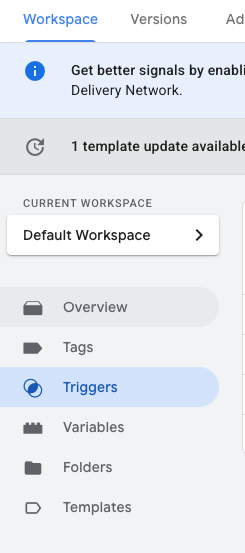
- Create a New trigger, click New in the upper right side of the Triggers window.
- Change the name of the trigger to something descriptive, like the name of the page. This example shows description as MyShop Page View.
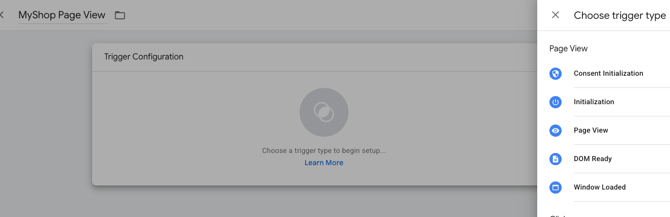
- Click in the Main Configuration Space and a meu slides out from the right. Choose Page View in the screen below.
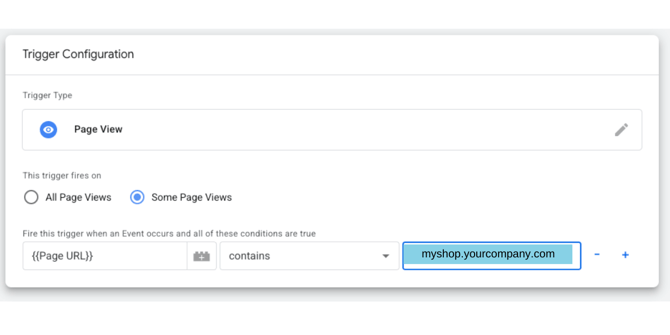
- Select the radio button Some Page Views and then type “URL” into the bar that appears beneath it and click on “”.
- Type in the URL of the page in the box on the right.
- Save your trigger.
Create Tag for Snitcher USING PAGE TRIGGER
- Go to Tag Manager account.
- Click on Tags in the left menu.
- Click on New on the right side of the screen.
- Rename the tag in the space at the top of the screen. “Snitcher” would be an appropriate label.
- Click on the main workspace for Tag Configuration. A screen will slide out from the right, like you see below.
- Choose Custom HTML from the menu.
- Paste the Snitcher code snippet that was provided by your marketing strategist.
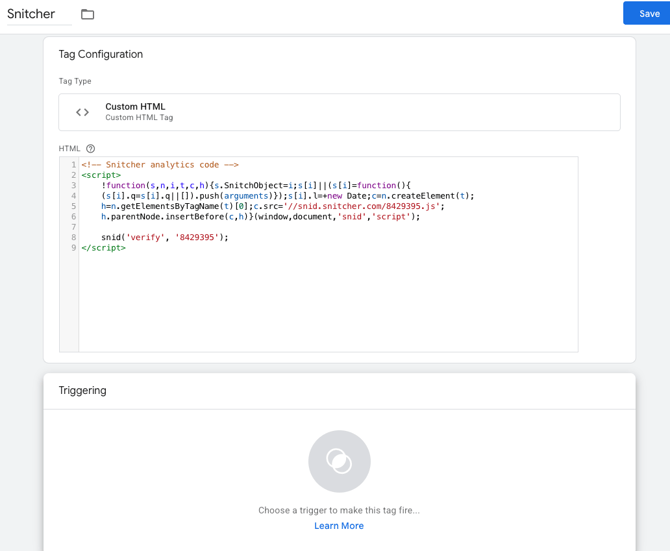
- Click in the Triggering box, and a menu will slide out from the right side of the page.
- Select the Trigger that you created in the previous section.
- Give the tag a name; suggestion is “Snitcher Script”
- Click the Save button.
- Submit updates to publish changes. Add a name for the version, like “Added Snitcher Tag”.
- Click Publish.